Build
Selection
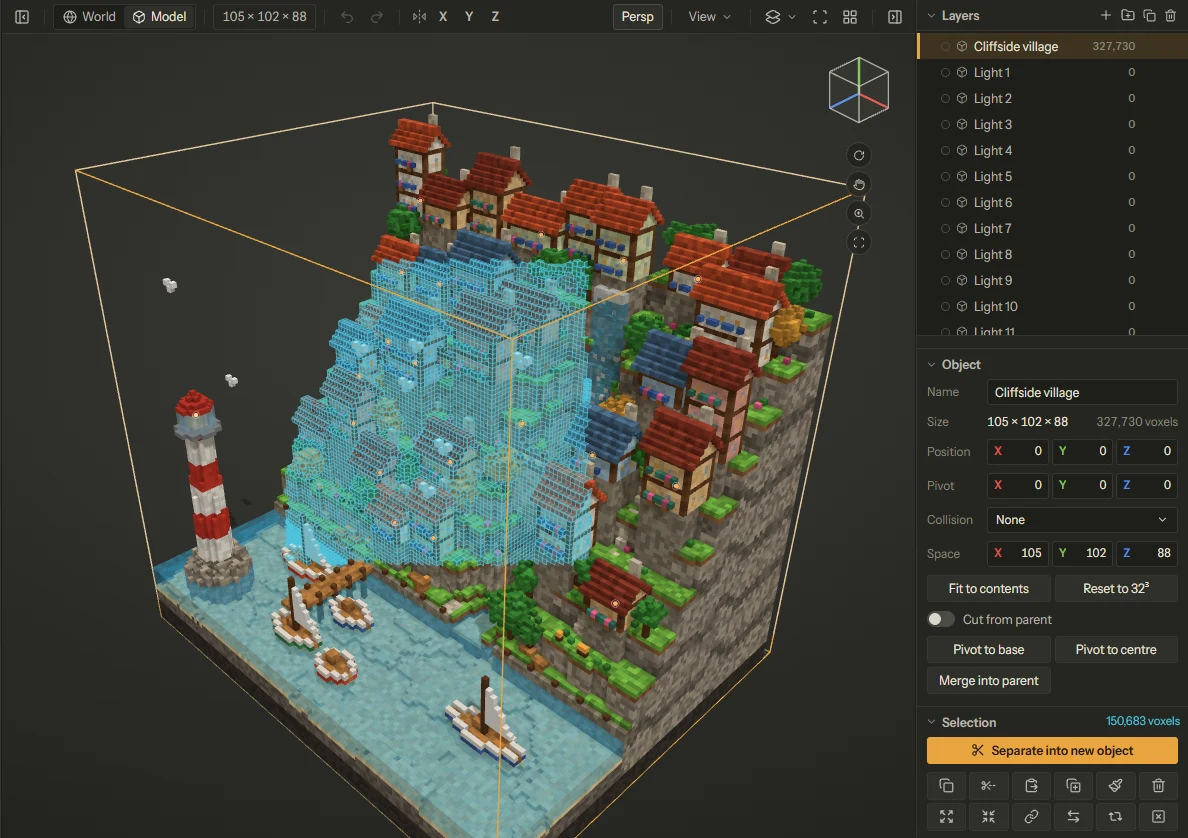
Select voxels when you want to change part of a model without touching the rest. Paint, Transform, Operations and copy and paste all respect the selection.
The Selection panel on the right shows how many voxels are selected, or Nothing selected.
Drag a box or lasso
- Press S for the Select tool.
- In Brush options, choose Shape: Box to drag a rectangle, or Lasso to draw a freehand outline.
- Drag over the voxels.
- Shift adds to the selection.
- Ctrl removes from it.
- A plain click selects a whole colour.
Turn on Visible voxels only to pick just the voxels you can see from this angle, not the ones hidden behind them.
Select by colour
- Same colour in the Selection panel (or Select by Colour in the Colour menu) selects every voxel that uses the current palette colour.
- Right-click a voxel for Select connected, same colour or Select all of this colour.
Select by face direction
Pick voxels with an open, uncovered face pointing one way. Use it to grab every top for grass or snow, or the walls facing the sun.
In Brush options with the Select tool, the Faces row has Top, Bottom, Camera, North, South, East and West. North is -Z, south is +Z, east is +X and west is -X. Camera picks faces turned towards your view.
If something is already selected, it searches inside that selection. Otherwise it searches the whole object.
Grow, shrink and connect
| Action | Shortcut | What it does |
|---|---|---|
| Grow Selection | Ctrl+] | Adds the voxels touching the selection. |
| Shrink Selection | Ctrl+[ | Removes the outer layer of the selection. |
| Select Connected | Ctrl+L | Expands to every voxel connected to it, any colour. |
| Invert Selection | Ctrl+Shift+I | Selects everything that wasn't selected. |
| Select All | Ctrl+A | Selects every voxel of the active object. |
| Deselect | Ctrl+D or Esc | Clears the selection. |
These are also icon buttons in the Selection panel.
Act on the selection
Once something is selected, the Selection panel shows Separate into new object and a row of icon buttons:
- Copy (Ctrl+C), Cut (Ctrl+X), Paste (Ctrl+V) and Duplicate (Ctrl+J)
- Paint with current colour
- Delete voxels (Delete or Backspace)
- Grow, Shrink, Select connected, Invert
- Repeat with offset…
- Deselect
Right-clicking a selection gives the same list, plus Use as Pattern.
Copy and paste
- Select some voxels. With nothing selected, Copy takes the whole object.
- Press Ctrl+C to copy, or Ctrl+X to cut.
- Press Ctrl+V. The copy follows the cursor.
- Click a surface to place it. You can turn it in Brush options with Turn 90° first.
- Click Done placing, or press 1, to go back to the Voxel brush.
Paste in Place (Ctrl+Shift+V) puts the copy back exactly where it came from, which is useful for moving voxels into another layer.
Duplicate in one go
Ctrl+J duplicates the selection beside itself. With nothing selected, it duplicates the whole object.
Make a row of copies
Repeat Selection… makes copies of the selection, each shifted by the same step. It's quick for stairs, fence rails and columns.
- Select the piece.
- Click Repeat with offset….
- Set Copies (1 to 256) and Step X, Step Y and Step Z.
- Run it.
The default (3 copies, one up and one along) makes a short staircase. If the steps are all 0 you'll be asked to set an offset, and it refuses anything over three million voxels.
Turn the selection into a pattern
Use Selection as Pattern turns the selected voxels into a pattern for the Pattern brush: rivets, a window, a carving, anything you want to repeat.
- Select the voxels.
- Right-click and choose Use as Pattern.
- Click surfaces to place copies.
In Brush options, Colours chooses Original (keep the pattern's colours) or Current (use the current colour). Turn 90° rotates it, and Done placing goes back to the Voxel brush.
Keep patterns for later
The Patterns shelf sits under the Pattern brush's options. Click its Save tile and type a name to keep the current pattern; click any pattern to pick it up again, in any project. Right-click one for Rename, Export… and Delete. To get to the shelf without making a pattern first, search for Brush: Pattern (Ctrl+K).
Each pattern is a .ciwb-pattern file in Documents\Ciwb\Patterns, with its real colours, so it looks the same with any palette (colours match the nearest palette slot). The folder button on the shelf opens it; files you copy in appear the next time Ciwb comes to the front.
Paint, move or split a selection
- Paint: with the Paint tool, only selected voxels change. Paint Selection sets them all to the current colour.
- Move or rotate: press T. The Transform tool and panel act on the selection. See Modelling.
- Split off: Separate into new object (Ctrl+Shift+J) moves the selected voxels into a new part, ready for rigging.
- Hide: H hides the selected voxels until you press Alt+H.