Help
Settings and interface
This page covers the Settings window, how the panels and toolbar behave, and how to find shortcuts.
Open Settings
Press Ctrl+,, use Edit > Settings, or click the cog at the bottom right of the window.
Type in Search settings at the top to filter the list. Press Esc to close. Changes apply straight away and are remembered next time.
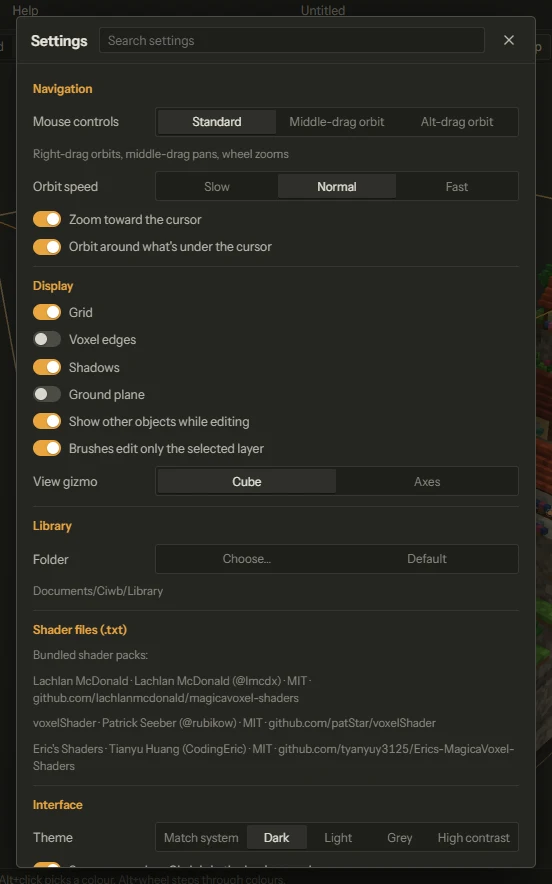
Navigation
| Setting | Choices | What it does |
|---|---|---|
| Mouse controls | Standard, Middle-drag orbit, Alt-drag orbit | How the mouse orbits, pans and zooms. See Getting started. |
| Orbit speed | Slow, Normal, Fast | How quickly the camera turns when you drag. |
| Zoom toward the cursor | on / off | The wheel zooms into whatever is under the mouse. |
| Orbit around what's under the cursor | on / off | Turning pivots on the point under the mouse. |
Display
| Setting | What it does |
|---|---|
| Grid | The ground grid. Also G. |
| Voxel edges | Thin lines between voxels. |
| Shadows | Shadows on the model and the ground. |
| Ground plane | A solid floor under the model. |
| Show other objects while editing | Off hides every object but the one you're editing. |
| Brushes edit only the selected layer | Brushes can only touch the selected layer, so you never carve the wrong object by accident. |
| View gizmo | Cube (a labelled cube; click a face to look at it) or Axes (coloured X, Y and Z arrows). |
More display switches live in the View menu and on the toolbar: Space Boxes, Frames, Wireframe, Shading and Show Collision. The three round buttons at the bottom right of the window toggle Grid, Voxel edges and Shadows.
Library
Folder sets where the Library panel looks for models. Choose… picks any folder of .vox or .ciwb models. Default goes back to Documents/Ciwb/Library. See Importing and exporting.
Shader files (.txt)
Folder sets where your own shaders live. Choose… picks a folder, Default goes back to Documents/Ciwb/Shaders. Below that are the bundled shader packs, with their authors and licences. See Detail for writing your own.
Interface
| Setting | Choices | What it does |
|---|---|---|
| Theme | Match system, Dark, Light, Grey, High contrast | Match system follows your Windows light or dark setting. Dark is a warm dark grey, Grey is a lighter grey, and High contrast has darker backgrounds and brighter text. |
| Save power when Ciwb is in the background | on / off | Stops redrawing while another window has focus, to save battery and keep fans quiet. Renders keep going. |
| Interface size | 90%, 100%, 110%, 125% | Makes all the text and buttons smaller or bigger. |
Arrange the panels
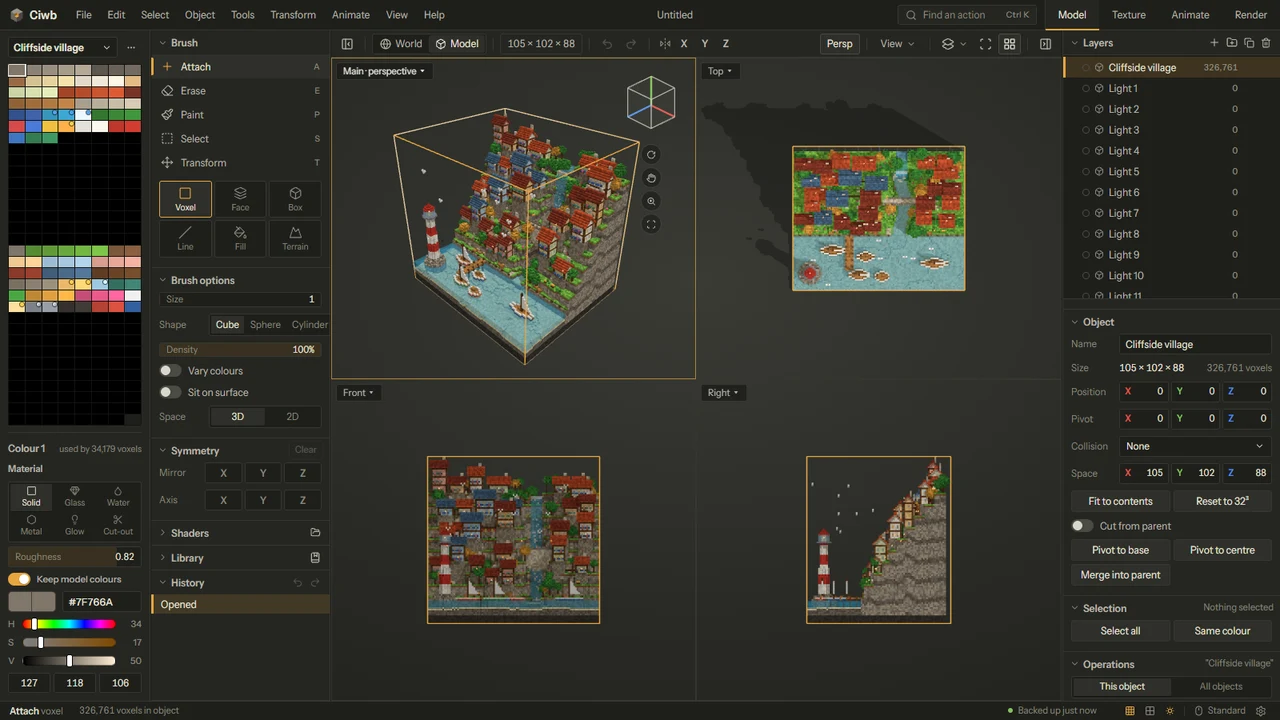
The window has a palette and tool column on the left, the viewport in the middle and a panel column on the right. What's in them depends on the tab:
| Tab | Left | Right |
|---|---|---|
| Model | Palette; Brush, Brush options, Symmetry, History, Shaders, Library (in World view: Arrange, Materials, References, Light preview) | Layers, Object, Selection, Operations, Transform, Colour |
| Texture | Palette; Paint, Layers, Face, Colour texture, UV, Resolution | Layers, Object |
| Animate | none | Layers, Object, Clip, Pose, Poses, Constraints, Skin and more, with the timeline below the viewport |
| Render | none | Render, Looks, Lighting, Camera, Effects, Background, Output, Video |
Things you can do:
- Fold a panel: click its title. Ciwb remembers which panels you leave open or closed.
- Resize a column: drag the edge between it and the viewport. Double-click the edge to put it back to its normal width.
- Hide the side columns: Ctrl+B (Toggle Sidebars) hides or shows both. View > Panels has Left Panels and Right Panel separately, and the toolbar has a button at each end.
- Go full screen: F11.
Ciwb never lets the panels squeeze the viewport too small. If the window gets narrow, the right column gives way first, then the tools.
Viewport layouts
Use View > Split screen or the grid button on the toolbar:
- Single View
- Two Views, Stacked and Two Views, Side by Side
- Four Views
- Three Views, Big Left, Big Right, Big Top and Big Bottom
Extra views show Top, Front and Side to start with. Click a view's label to change what it shows.
How the toolbar folds up
The toolbar above the viewport holds, from left to right: the left-panel button, World / Model, the space size chip, Undo and Redo, the mirror buttons, Perspective / Orthographic, the view buttons, the display toggles, Frame model, Split screen and the right-panel button.
When the window is too narrow to show it all, groups fold into small menus rather than being cut off. The display toggles fold first, then the view buttons (into View), then the camera (into Persp / Ortho). Nothing disappears; it's just a click further away.
The status bar
The strip along the bottom shows:
- the current tool and brush (for example "Attach box"), and "while Shift is held" when you're borrowing the other tool;
- how many voxels the active object has;
- the X, Y, Z cell under the cursor;
- how many voxels are selected;
- a tip for what you're doing;
- the autosave state (Backed up just now and so on);
- quick toggles for Grid, Voxel edges and Shadows, the mouse scheme chip and the Settings cog.
Shortcuts
Press F1 (or Shift+?) for Keyboard Shortcuts: every shortcut, grouped and searchable. It also lists mouse gestures, such as Alt+click to pick a colour.
The full list is in Keyboard shortcuts. Shortcuts can't be changed in this version.