Building with brushes
Box, Line and Fill brushes
Build the counter top for your market stall with three brushes - Box for a slab to an exact size, Line for a straight trim, and Fill to recolour a whole area in one click.
- 8 min
- 4 steps
- Beginner
Files for this lecture
Before this lecture
- First steps (your first model used the Box brush)
- A tour of the window
Three brushes do most of the building in Ciwb. Box makes blocks, Line makes straight rows and Fill acts on a whole connected area. Each one works with Attach, Erase and Paint. In this lecture you use them to build the counter top for the market stall you finish at the end of the course.
Step by step
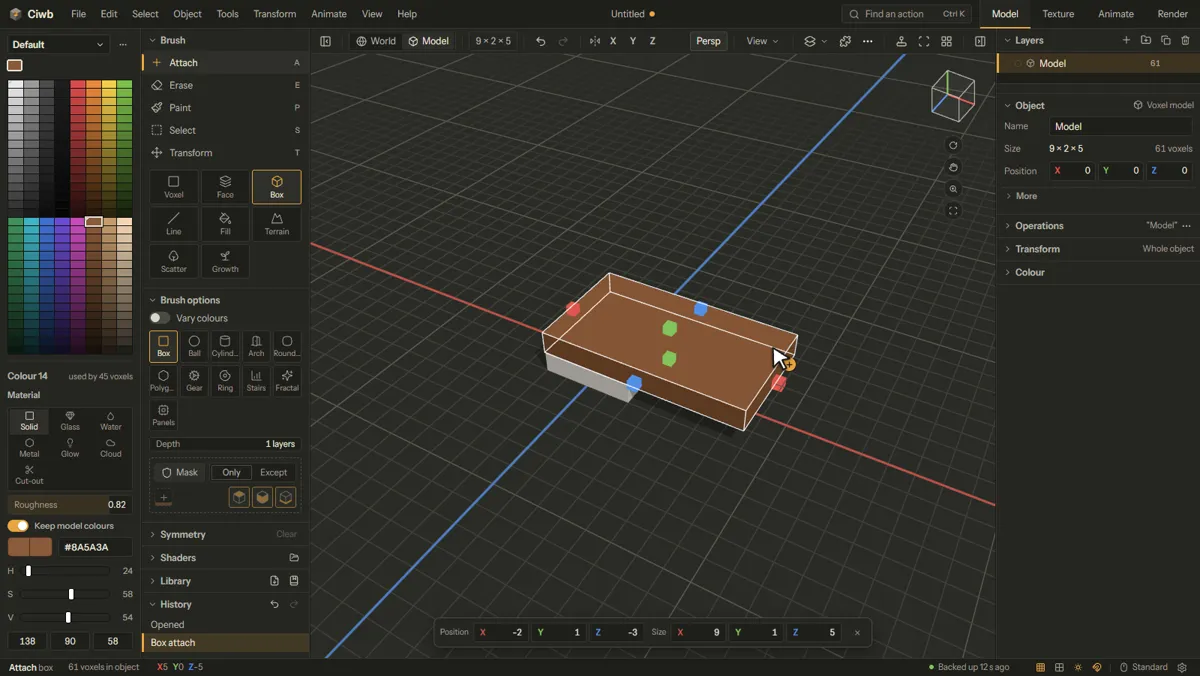
Draw a block with Box
Open vf-s2-l1-starter.ciwb. Press 3 for Box and pick a mid brown. Drag across the top of the plinth and out beyond it. The size shows next to the cursor as you drag.
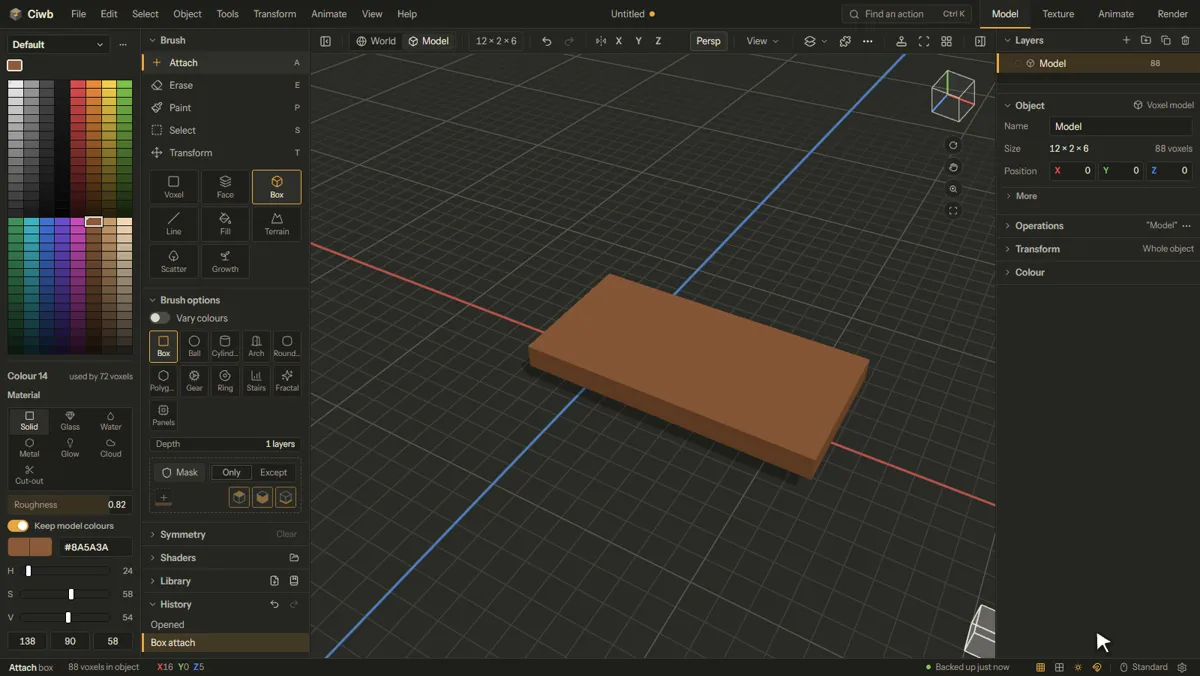
Type an exact size
A box you have just placed stays adjustable. The bar below the view shows its Position and Size. Click each Size field and type 12, 1 and 6, pressing Enter after each. The box resizes exactly. Press Esc when it is right. You can also drag the coloured handles on the box.
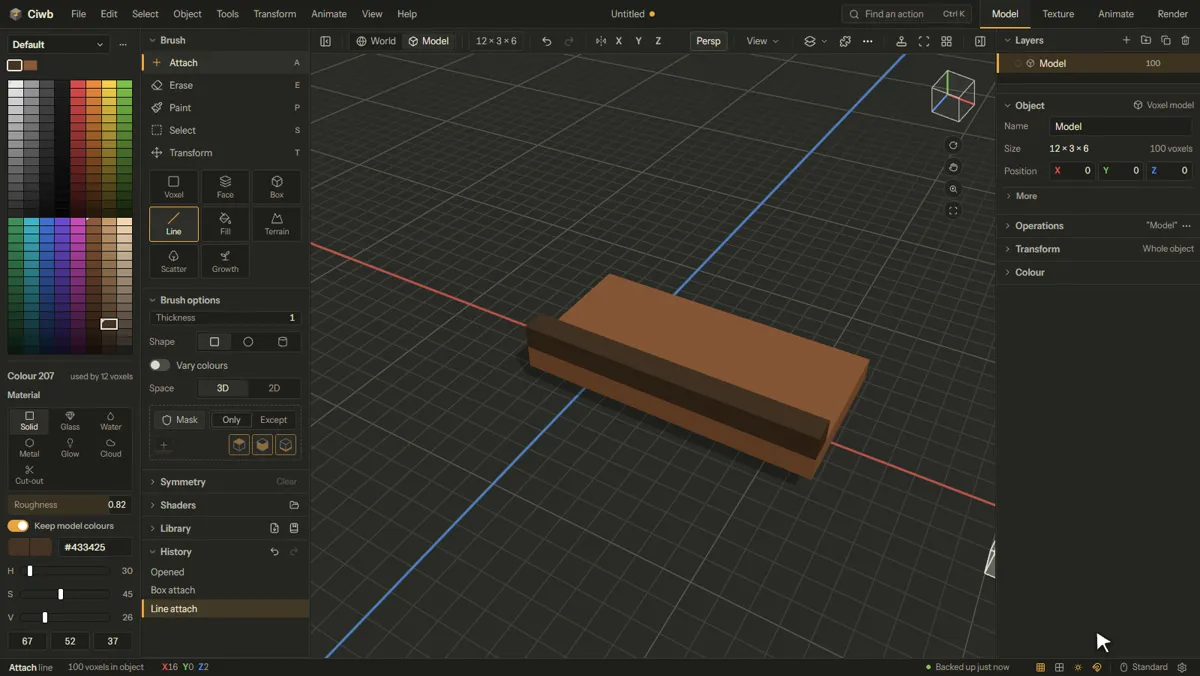
Draw a trim with Line
Pick a dark brown and press 4 for Line. Drag along the front edge of the slab, from one corner to the other. A straight row of voxels follows the drag, and its length shows as you go.
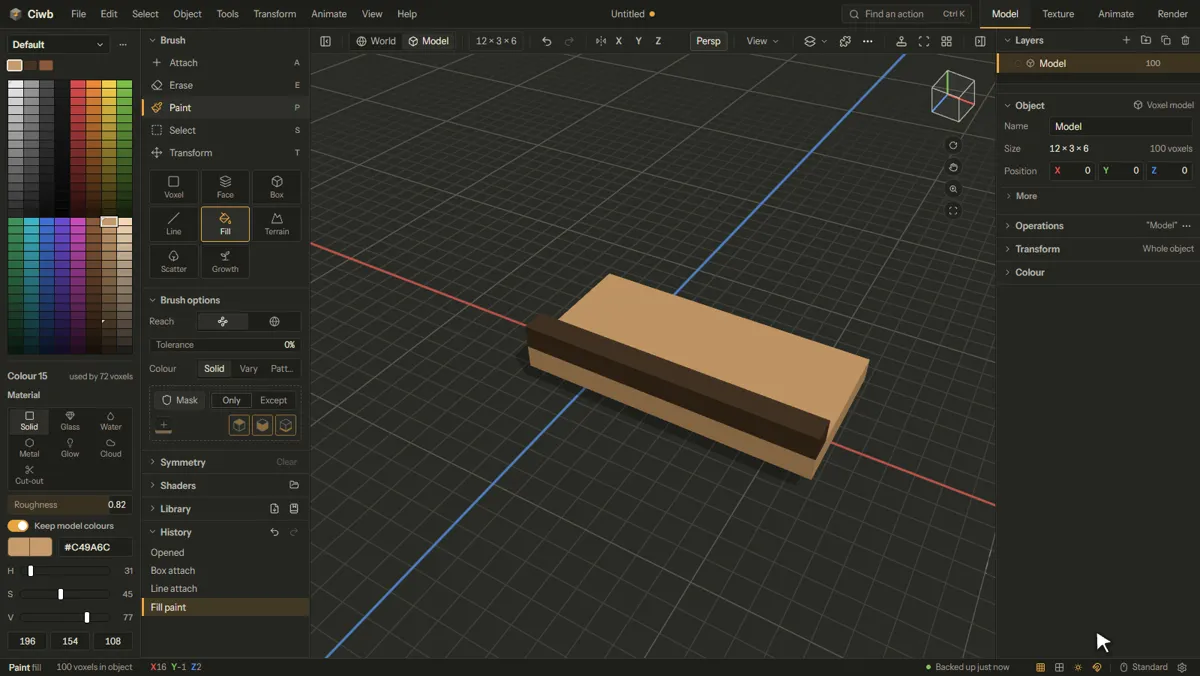
Recolour with Fill
Press P for Paint and 5 for Fill, and pick a lighter wood. Click the slab. Every connected voxel of that colour changes at once, and the trim keeps its own colour. Tolerance in Brush options lets Fill take in similar colours too.
Common mistake
Using Fill when two areas share a colour. Fill follows every connected voxel of the clicked colour, so if the trim were the same brown as the slab it would change too. Give parts different colours first, or limit Fill with Mask.
Recap
Box draws blocks, and its bar takes exact sizes. Line draws a straight row between two points. Fill, with Paint, recolours every connected voxel of one colour. Save the file; the market stall uses it.
| 3 | Box brush |
| 4 | Line brush |
| 5 | Fill brush |
| P | Paint tool |
| Esc | Finish adjusting a box |
Transcript
In this lecture you build the counter top for your market stall with three brushes: Box for the slab, Line for the trim, and Fill to recolour it in one click.
Open the starter. Press three for the Box brush and pick a mid brown. Then drag across the top of the plinth and out beyond it. The size shows next to the cursor as you drag.
Just placed, the box stays adjustable. The bar below the view shows its position and size. Type twelve for X, one for Y and six for Z, and the box resizes exactly. Press Escape when it is right.
Pick a dark brown, and press four for the Line brush. Drag along the front edge of the slab, from one corner to the other. A straight row of voxels follows, as long as the edge.
Press P for Paint and five for the Fill brush, and pick a lighter wood. Click the slab. Every connected voxel of that colour changes at once, and the trim keeps its own colour.
Your counter top is done. To recap: Box draws blocks, and its bar takes exact sizes. Line draws a straight row between two points. Fill, with Paint, recolours every connected voxel of one colour. Save the file.
Narration: Kokoro-82M (hexgrad, Apache-2.0), voice bm_george.