Building with brushes
Undo, redo and history
Step back through any mistake with Ctrl+Z, step forward again with Ctrl+Y, and jump to any point in the History panel - while setting apples out on your counter top.
- 6 min
- 5 steps
- Beginner
Files for this lecture
Before this lecture
- Box, Line and Fill brushes (the starter is its finished counter top)
Every change you make in Ciwb can be taken back and brought back again, so you can try things freely. The starter is the counter top from the last lecture.
Step by step
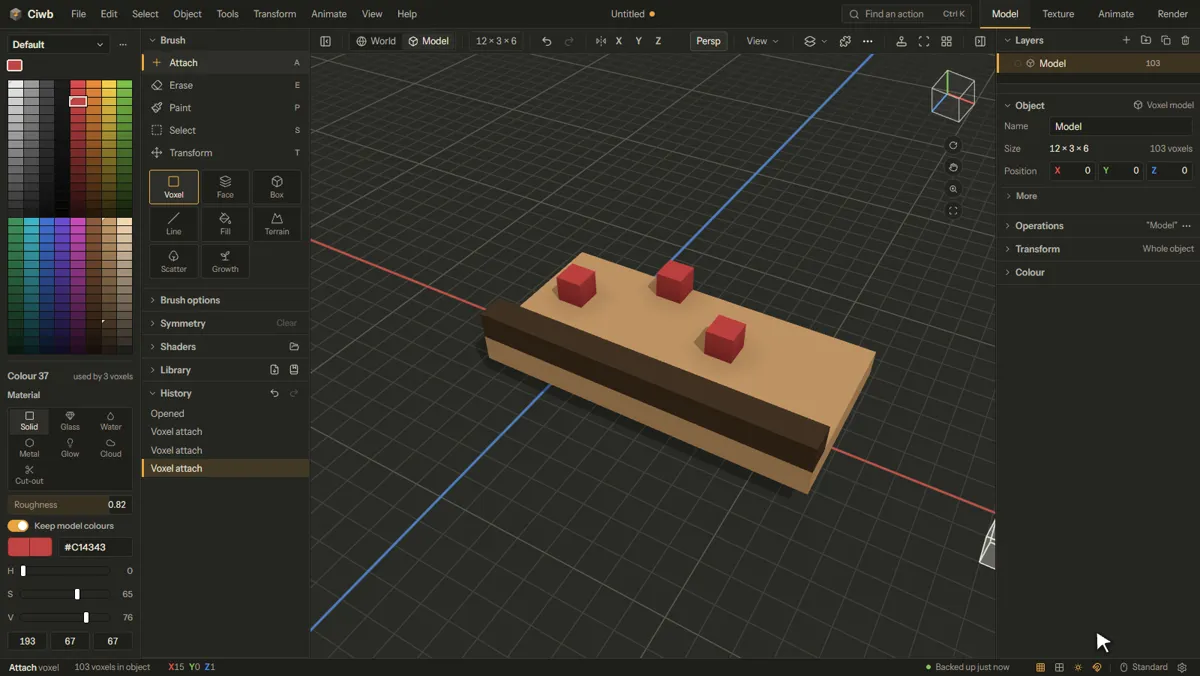
Make three changes
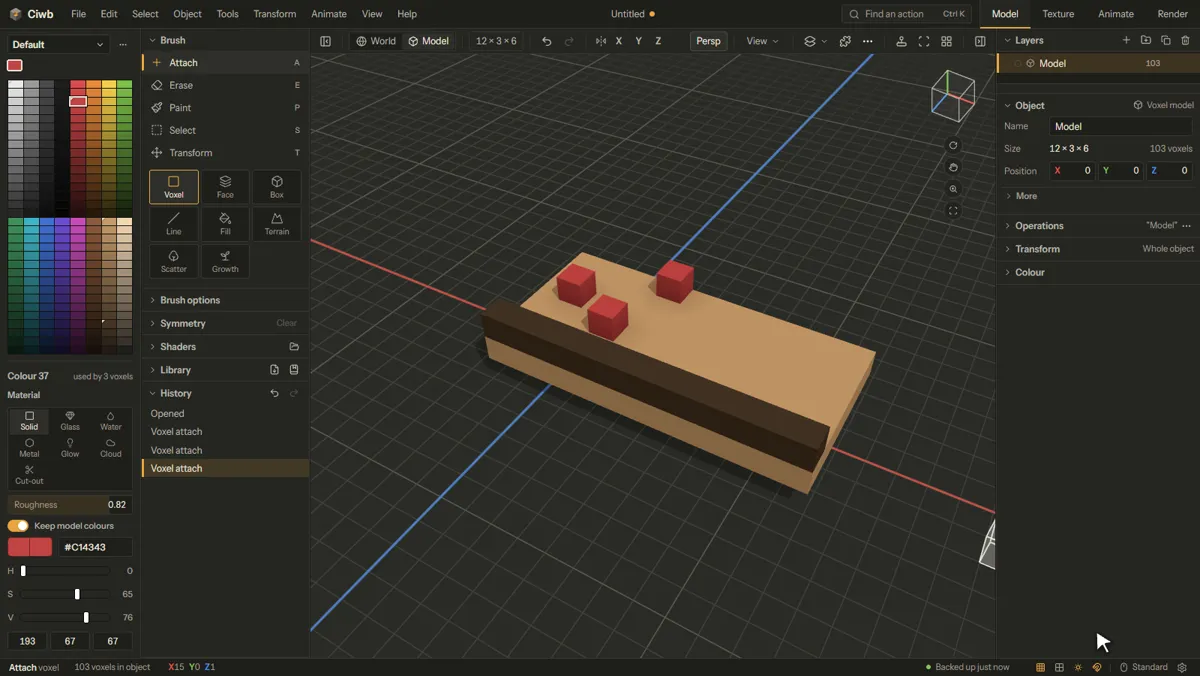
Press 1 for the Voxel brush and pick a red. Click three times on the counter to set out three apples. Each click is one change, and History (bottom left) lists all three.
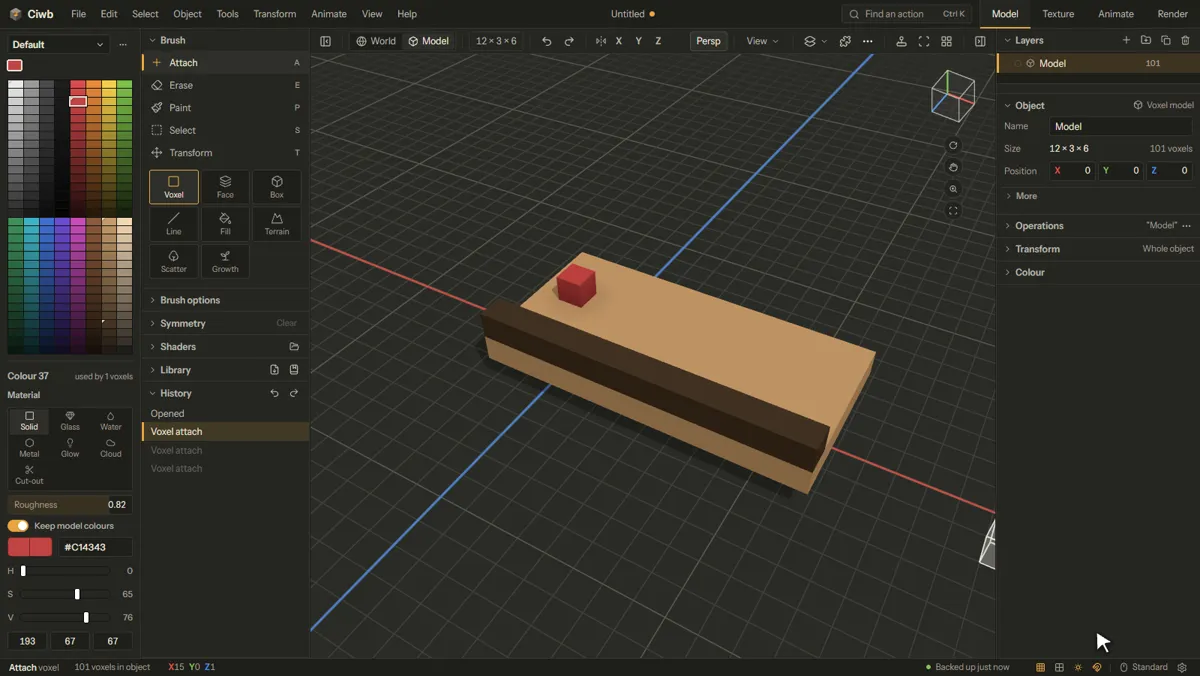
Undo with Control Z
Press Ctrl+Z twice. The last two apples go, newest first. In History, the steps you undid stay listed, dimmed.
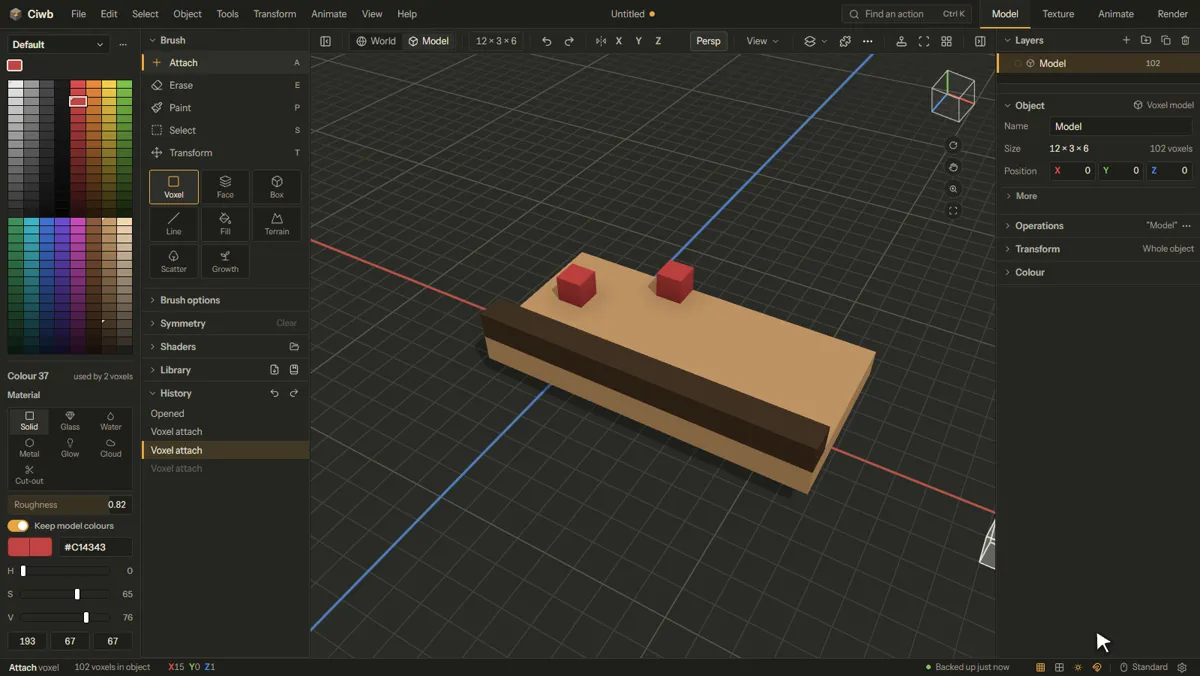
Redo with Control Y
Press Ctrl+Y (Ctrl+Shift+Z works too). The second apple comes back: redo steps forward through what you undid.
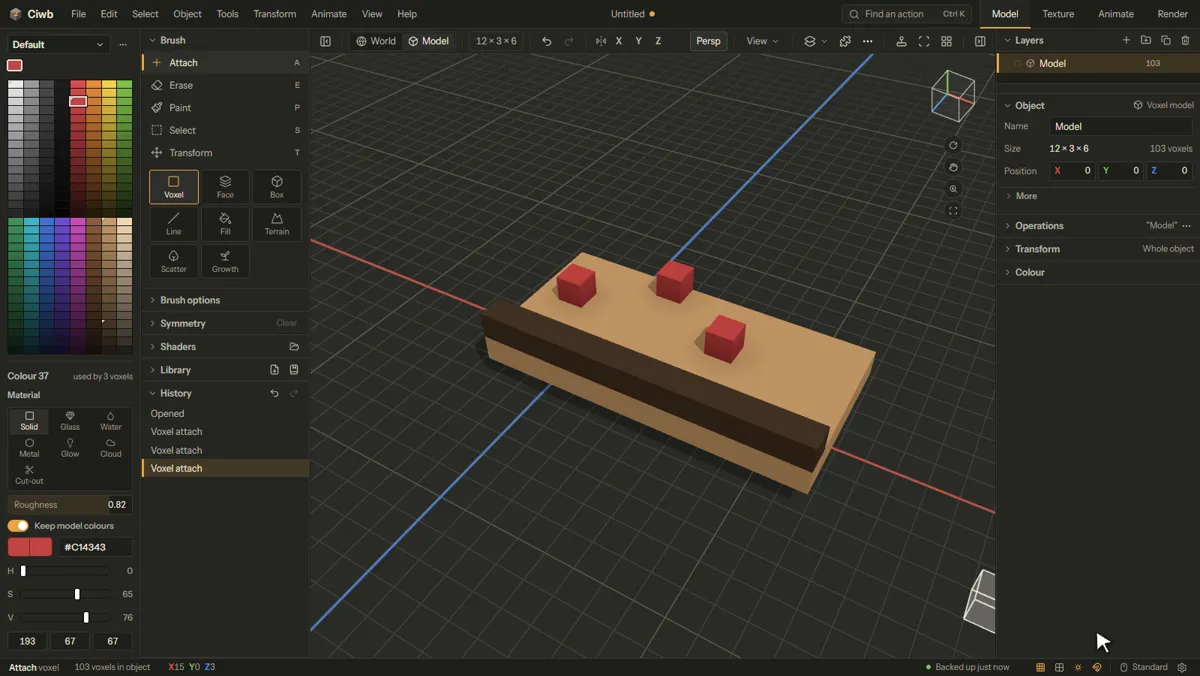
Jump in History
Click Opened at the top of History and the counter is back as it was when you opened the file. Click the last step and everything returns. You can click any step in between, too.
A new change replaces undone steps
Undo once, then make a new change: place an apple somewhere else. The undone step is gone from History, replaced by the new one.
Common mistake
Undoing several steps to look at an earlier version, then carrying on from there by accident. The first new change throws the undone steps away. Jump back to the last step before you edit again, or save a version first (File > Save a Version).
Recap
Ctrl+Z undoes, Ctrl+Y redoes, and clicking a step in History jumps straight to it. A new change after an undo replaces the undone steps. Save the file; the stall uses it.
| Ctrl+Z | Undo |
| Ctrl+Y | Redo (also Ctrl+Shift+Z) |
| 1 | Voxel brush |
Transcript
Every change you make in Ciwb can be taken back, and brought back again. Knowing that, you can try things freely. Open the starter: the counter top from the last lecture.
Press one for the Voxel brush and pick a red. Click three times on the counter to set out three apples. Each click is one change, and History, at the bottom left, lists all three, the newest at the bottom.
Press Control Z twice. The last two apples go, newest first. In History, the steps you undid stay listed, dimmed.
Press Control Y. The second apple comes back. Redo steps forward through what you undid.
You can also jump. Click Opened at the top of History, and the counter is back as it was when you opened it. Click the last step, and everything returns.
One thing to know. Undo once, then make a new change: place an apple somewhere else. The undone step is gone from History, replaced by the new one. So redo what you need before you carry on.
To recap: Control Z undoes, Control Y redoes, and clicking a step in History jumps straight to it. A new change after an undo replaces the undone steps. Save the file.
Narration: Kokoro-82M (hexgrad, Apache-2.0), voice bm_george.